
How to share your Wi-Fi with a QR code, without reading the password out loud
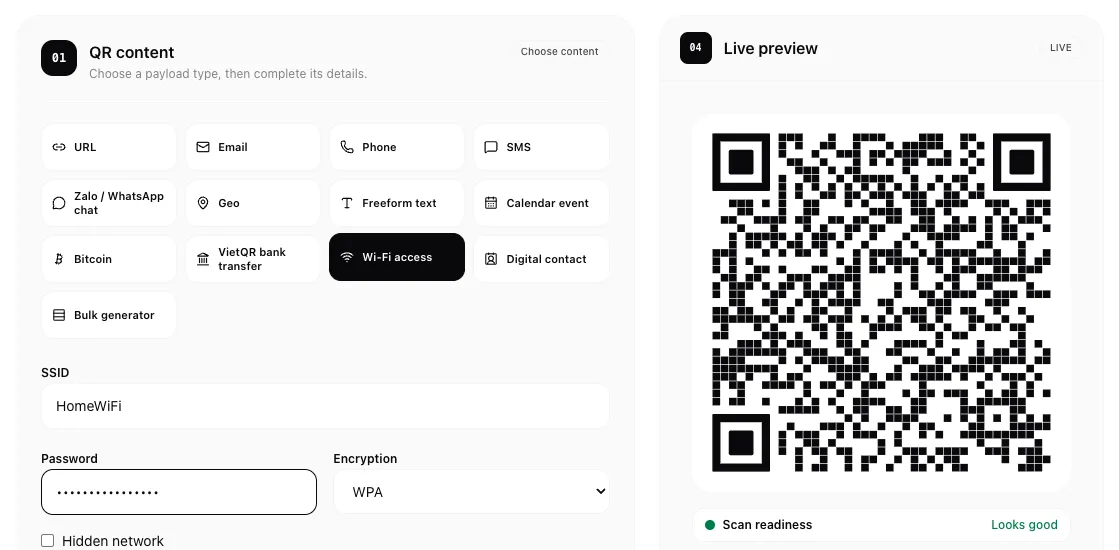
Every guest asks the same thing: "What's the Wi-Fi password?" Then you spell out a long string of letters and digits, someone types one character wrong, and you start again. Worse, everyone nearby hears it. A Wi-Fi QR code fixes both problems: guests point their camera at it and join the network, and nobody has to say the password out loud.
What is in a Wi-Fi QR code?
A Wi-Fi QR code holds three things: the network name (SSID), the password and the security type. Phones read it as "join this network" rather than as a link, and offer to connect. Nothing goes through the internet: the phone reads the code and joins your router directly.
Create a code in 4 steps
Open the WiFi QR code generator on homielab.com.
- Enter the network name (SSID). Type it exactly as your router broadcasts it, including upper and lower case and spaces.
- Enter the password. Check it twice: the code holds exactly what you type.
- Pick the security type. WPA covers WPA and WPA2, which is what most home and shop routers use, including WPA2/WPA3 mixed mode. Pick WEP only for a very old router and None for an open network. Tick Hidden network if your network is not broadcast.
- Download it. Save it as PNG, SVG or PDF, or copy the image. The style section lets you change colours, add a logo and put a heading or caption around the code.
Print it for guests
- Add a caption such as "Scan to join the Wi-Fi" and the network name, so people know what the code is for.
- SVG and PDF stay sharp at any size, from a small table card to a poster by the door.
- Keep enough white space around the code and print on matte paper; glare from a laminated sheet can make scanning harder.
- Put it where guests are, such as the counter, the tables or the fridge door, not inside a cupboard next to the router.
Use a guest network if you can
Anyone who scans the code can see the password: phones show it on the Wi-Fi screen and a QR reader shows it as text. If your router supports a guest network, print the code for that one. Guests get internet access but not your computers, printers or cameras, and you can change its password without touching your own devices.
When you change the password, the old code stops working. Make a new one and replace every printed copy.
How guests scan it
- iPhone: open the Camera app, point it at the code and tap the Wi-Fi prompt that appears.
- Android: open the Camera app or Google Lens and tap the prompt. On Android 10 and later, the Wi-Fi settings also have a QR icon next to "Add network".
No extra app is needed on either.
Check it before you print it
Scan the code with your own phone first, with Wi-Fi switched off or after forgetting the network, and make sure it joins. You can also open the image in the QR code reader: it shows the network name, the security type and the password stored in the code, so you can spot a typo.
The code is drawn in your browser. Your network name and password are not sent to a server or saved, and nothing is kept after you close the page.
Need a code for a link, a contact or a calendar event instead? The QR code generator makes those too.
FAQ
Is it really free? Yes. There is no sign-up, no limit and no watermark.
Does the code expire? No. It works until you change the network name, the password or the security type.
My phone shows the network but won't join. Why? Check the security type. On a WPA3-only network some phones cannot join from a code; switching the router to WPA2/WPA3 mixed mode usually fixes it. Also check that the name matches exactly, including upper and lower case.
Can someone get my password from the code? Yes. Anyone who can scan the code can read the password. That is why a guest network is the better choice for a printed code.
Related posts
- How to remove the GPS location from a photo before you share itPhone photos can carry the exact spot where they were taken. See whether yours does and download a clean copy without the location, right in your browser.
- How to make a contact QR code (vCard) for your business card, freeMake a vCard QR code in your browser: enter your name, phone, email and website, then print it on a business card so people save your contact with one scan.
- How to create a VietQR code to get paid, free and without an appMake a VietQR code for bank transfers in your browser: pick your bank, enter your account number, add an amount and note if you like, then print it.