
How to make a contact QR code (vCard) for your business card, free
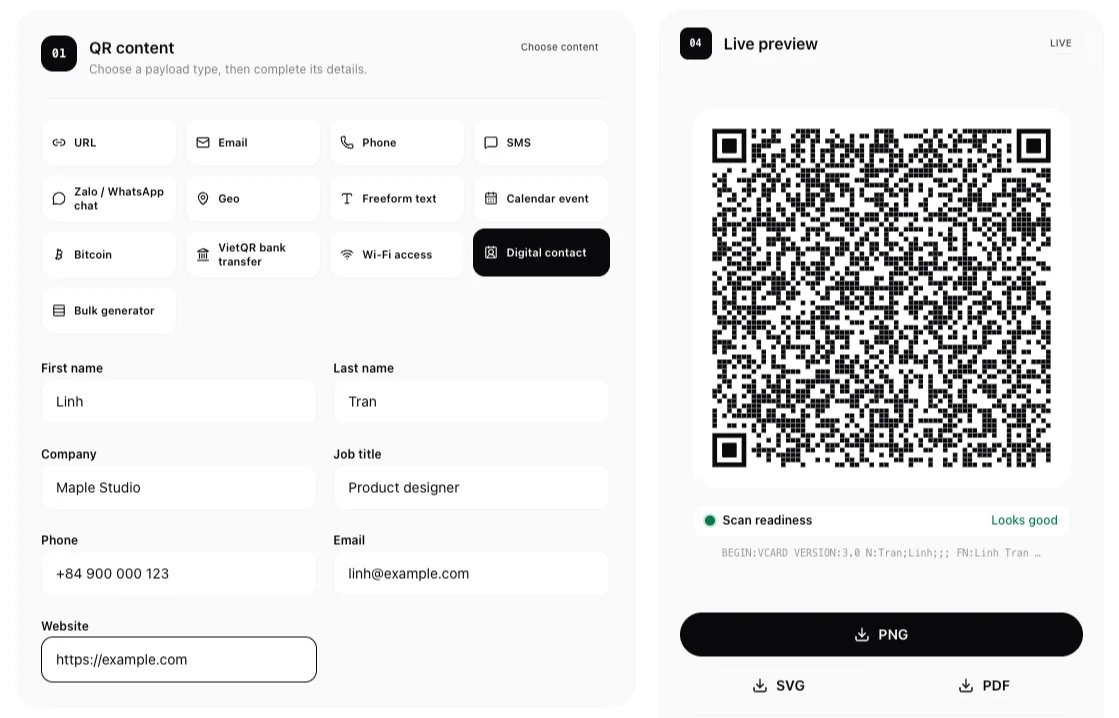
You hand someone your business card, and later they have to type your name, phone number and email into their phone, one character at a time. Many never do. A contact QR code on the card lets them scan it and save you to their contacts in a few taps, with nothing to retype.
What is a vCard QR code?
vCard is the standard file format for contact cards, the same one phones use when you share a contact. A vCard QR code stores that card inside the code itself: your name, company, job title, phone, email and website. When someone scans it, their phone recognises a contact and offers to add it. There is no link and no server in between, so the code works offline and never expires.
Create a code in 4 steps
Open the vCard QR code generator on homielab.com.
- Enter your name. First and last name go in separate fields, so phones file the contact correctly.
- Add your work details (optional). Company and job title show under your name in the saved contact.
- Add how to reach you. One phone number, one email address and one website. Write the phone number with the country code, such as +84 for Vietnam, so it works for people abroad too.
- Download it. Save it as PNG, SVG or PDF, or copy the image. The style section lets you change colours, add a logo and put a heading or caption around the code.
Which fields to fill in
Every field you add makes the code denser, with more and smaller squares. Smaller squares are harder to scan when the code is printed small, so fill in what people actually need: usually your name, phone and email, plus a website if you have one. The code has no fields for a postal address or a photo.
Leave out anything you would not print on the card itself. Anyone who scans the code can read everything in it.
Print it on your card
- Download SVG or PDF for print, so the code stays sharp at any size. PNG is fine for an email signature or a slide.
- Keep dark squares on a light background and leave a quiet margin of white around the code.
- Do not print it too small. On a business card, a code about 2 cm wide or more is a safe start, larger if you filled in many fields.
- Add a short caption such as "Scan to save my contact", so people know what the code does.
How people scan it
- iPhone: open the Camera app, point it at the code and tap the contact prompt, then add it to Contacts.
- Android: open the Camera app or Google Lens and choose to add the contact. The wording depends on the phone and its version.
Most recent phones handle this without an extra app, but older phones or some camera apps may only show the code as text. In that case a QR scanner app can still save it.
Check it before you print
Scan the code with your own phone and look at the contact it creates: name, phone, email and website should all be right. You can also open the image in the QR code reader, which shows the text stored in the code, so you can spot a typo before you print a whole batch.
The code is drawn in your browser. Your contact details are not sent to a server or saved, and nothing is kept after you close the page.
Want a code for your Wi-Fi or a link instead? Try the WiFi QR code generator or the QR code generator.
FAQ
Is it really free? Yes. There is no sign-up, no limit and no watermark.
Does the code expire? No. The details are stored in the code itself, not behind a link, so it keeps working as long as it can be scanned.
Can I update my details after printing? No. A new phone number or job title means making and printing a new code. That is the trade-off for a code that needs no account and no server.
Can I add a second phone number or my address? Not in this generator. It holds one phone number, one email address and one website, and has no address or photo field.
Related posts
- How to remove the GPS location from a photo before you share itPhone photos can carry the exact spot where they were taken. See whether yours does and download a clean copy without the location, right in your browser.
- How to share your Wi-Fi with a QR code, without reading the password out loudMake a Wi-Fi QR code in your browser: enter the network name and password, pick the security type, then print it so guests join with one scan on iPhone or Android.
- How to create a VietQR code to get paid, free and without an appMake a VietQR code for bank transfers in your browser: pick your bank, enter your account number, add an amount and note if you like, then print it.